
Quick Jump-to Guide
Artist Tab
Inventory Record
Inventory Import
Artist Records store all the information about the artists you represent. Add artists to your Artlogic Connect account in three ways:
- Artists tab
- Inventory Record
- Inventory import
Artists Tab
Navigate to the Artists tab and click “Add Artist.”
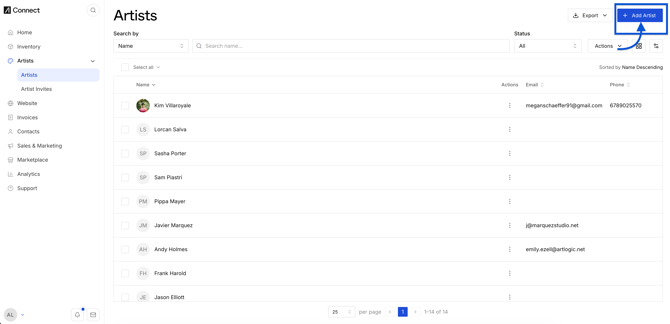
Artlogic Connect opens a blank Artist Record for you to fill out with the artist’s details, including contact information, biography, CV, and profile picture.
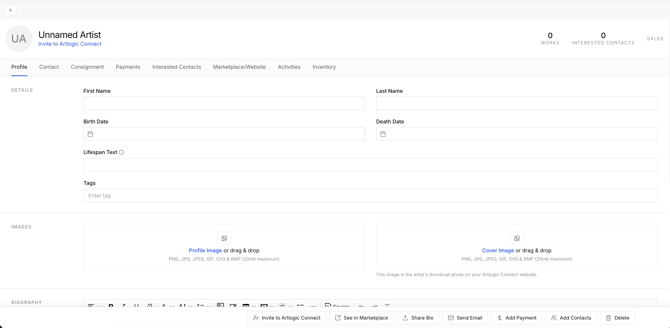 Read more here: Artist Record Overview. Or, watch this video from our Getting Started Series: Artist Records.
Inventory Record
On a new or existing Inventory Record, type the artist’s full name in the Artist field and click “Add [NAME] as a new artist.”
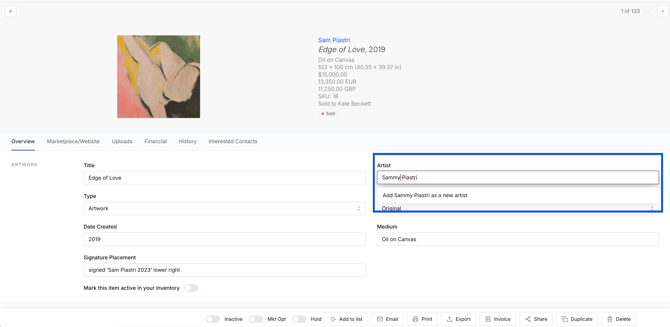
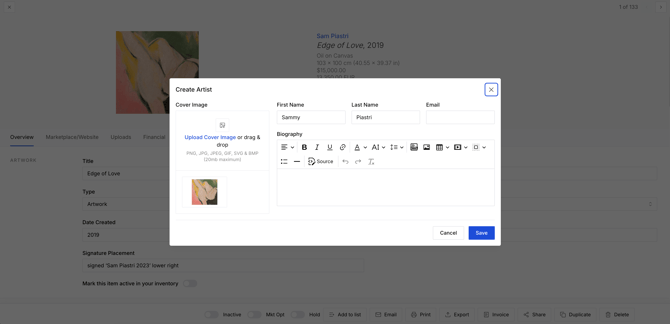
A pop-up prompts you to enter the artist’s core details. Click “Save,” then open the Artist Record to add more details.
Adding inventory in bulk works the same way. Read more: Add Inventory to ArtCloud
Inventory Import
An inventory import creates an Artist Record for each artwork with an associated artist. After the import, open the Artist Records to fill in more details.