
Quick Jump To Guide:
Profile
Contact
Consignment
Payments
Interested Contacts
Marketplace/Website
Activities
Inventory
Actions Bar
Artist Records hold details about the artists you represent. This article walks through each tab and field on an Artist Record. You don’t need to fill out every field, but the more data, the better.
Profile
The Profile tab stores the artist's essential information.
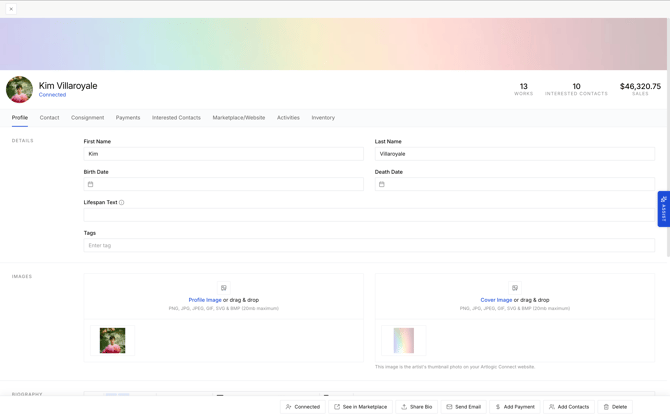
- First Name and Last Name: Enter the artist’s first and last name.
- Birth Date and Death Date: Select the artist’s birth date and death date, if applicable.
- Lifespan Text: Use this field when exact birth or death dates are unknown or not preferred.
- Tags: Associate the artist with terms and phrases to organize, filter, and search across the ArtCloud Manager and Website Builder.
- Images: Attach .jpg, .png, .gif, or .svg files for the artist’s profile and cover images. These images determine what appears on the Artist Profile Template on your ArtCloud website.
- Biography: Enter or paste the artist’s biography.
- Curriculum Vitae: Enter or paste the artist’s CV.
- Documents: Upload documents related to the artist, like artist statements or histories.
Tip: When pasting a biography or CV, click the Tx icon to clear the text formatting so the website content matches your type styles.
Contact
The Contact tab records the artist’s contact information. Enter core contact details to make it easier to communicate with the artist, consign inventory, and record payments.
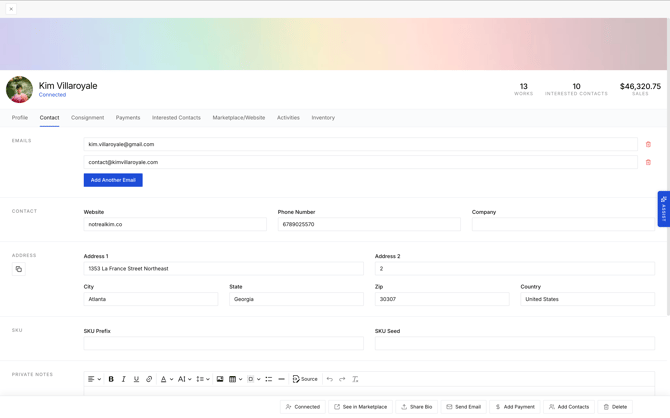
- Emails: Enter the artist’s email and click “Add another email” to add more addresses.
- Website: Enter or paste the artist’s portfolio website.
- Phone Number: Enter the artist’s phone number.
- Company: Enter any company associated with the artist.
- Address: Enter the location of the artist’s studio.
- SKU: Use the SKU Prefix and Suffix Seeds to control how ArtCloud generates SKUs for the artist’s inventory.
- Private Notes: Enter extra information about the artist. Only your gallery team sees private notes.
- Social Platforms: Select a social media platform and enter the artist’s handle.
Consignment
Manage consignment splits and terms on the Consignment tab. Inventory on consignment from the artist appears on this tab, including inventory from the initial consignment created when you invite the artist to ArtCloud.
- Consignment Cost: Set the default consignment amount for the artist’s artwork.
- Consignment Cost Type: Pick percentage or amount for calculating the consignment due.
- Consignment Calculation Method: Decide whether GST/VAT taxes factor into the consignment cost.
- Default Consignment Terms: Enter consignment terms to apply to all of the artist’s consigned works.
Tip: Look below the artist's name to see if they're connected to your Gallery Account.
Payments
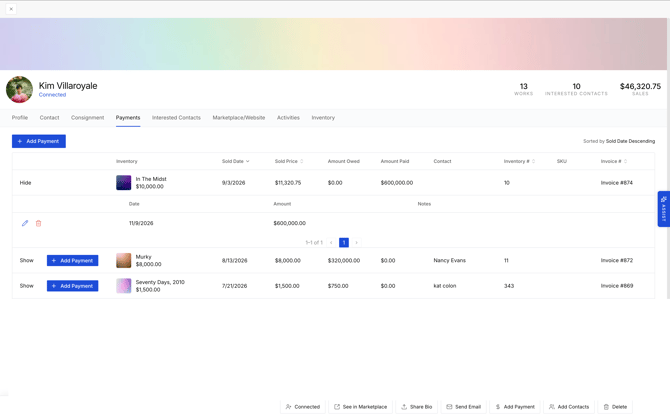
The Payments tab displays payments owed and paid to the artist based on sales of their inventory.
Click “Add Payment” at the top or next to an item to log a payment to the artist. Click “Show” to view details about a payment. ArtCloud does not process payments to artists. Read more: Record, Edit, & Share Artist Payments.
Interested Contacts
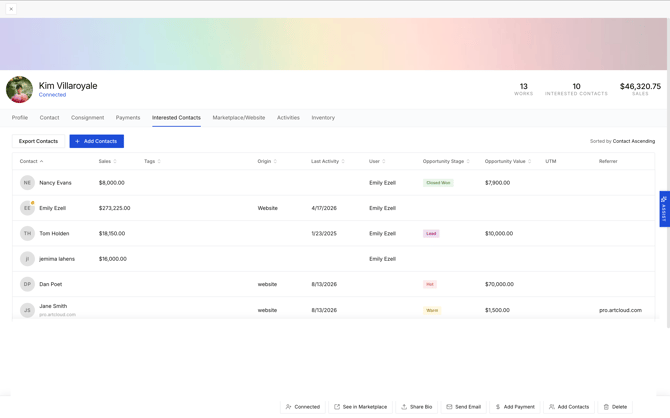
The Interested Contacts tab lets you view, export, and add contacts interested in the artist. ArtCloud automatically creates an artist interest when a contact inquires about or purchases the artist's works. Read more: What is an “Artist Interested” Contact?
Marketplace/Website
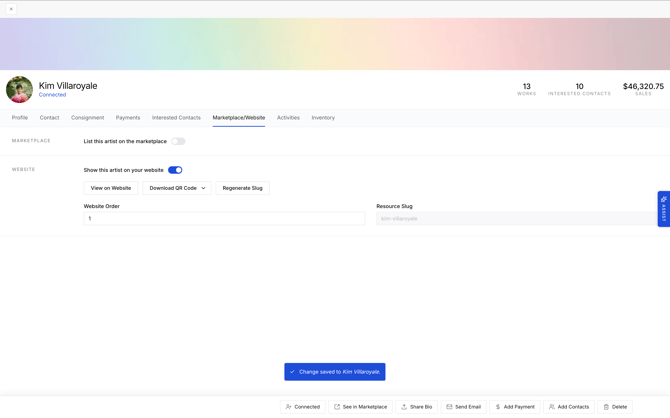
The Marketplace/Website tab controls whether the artist appears on the ArtCloud Marketplace or your website.
Use the buttons to view the artist’s profile on the Marketplace or website, and turn on the Artsy toggle to sync the artist to Artsy.
Activities
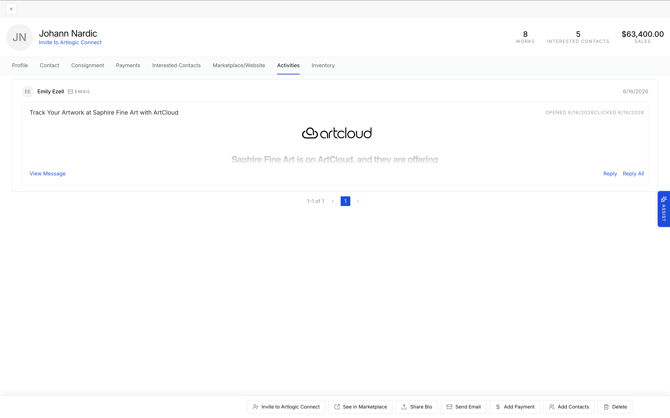
The Activities tab logs communications with the artist, including artist invites.
Inventory
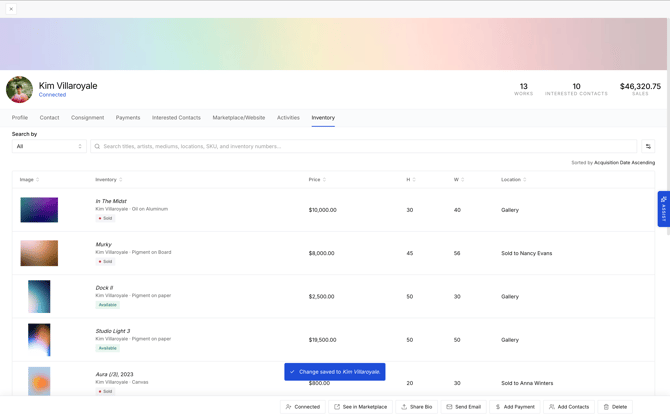
The Inventory tab lists all inventory associated with the artist. Search and filter to find specific works.
Actions Bar
The bar at the bottom of the Artist Record includes quick actions for frequent tasks.

- Invite to ArtCloud: Invite the artist to create a free ArtCloud Artist account. Read more: How to Invite Artists to ArtCloud through a Gallery Account.
- See in Marketplace: Open the artist’s Marketplace profile if they’re opted into the Marketplace.
- Share Bio: Export, email, or print the artist’s biography. The biography follows the Artist Biography template, which you can customize in the Collateral Builder.
- Add Contacts: Add contacts interested in the artist.
- Add Payment: Record a payment made to the artist for the sale of their work.
- Delete: Remove the Artist Record from the account. You can’t delete an artist with associated inventory, invoices, or artist payments. We discourage deleting Artist Records.