
Quick Jump To Guide:
What are Quicklists
Set and Inventory List Block to Display by Quicklist
Customize the Order of Inventory
What are Quicklists?
Quicklists let you put inventory into different groups. You can display these groups as curated selections on your website. Common uses include displaying inventory by medium, theme, price range, or size.
Tip: Use Quicklists on the website when you want to customize the order of artworks shown.
Set an Inventory List Block to Display by Quicklist
By default, an Inventory List Block displays all website-opted inventory. Use the Source dropdown to filter what appears.
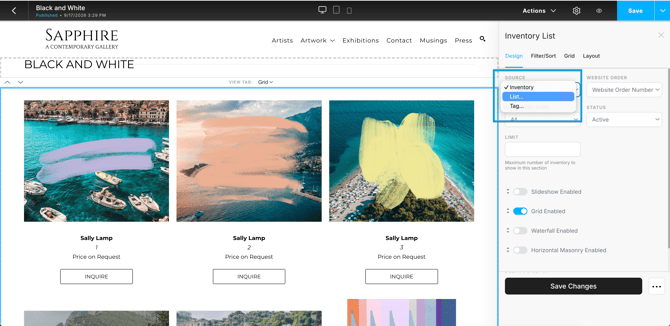
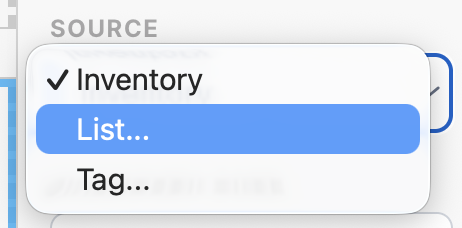
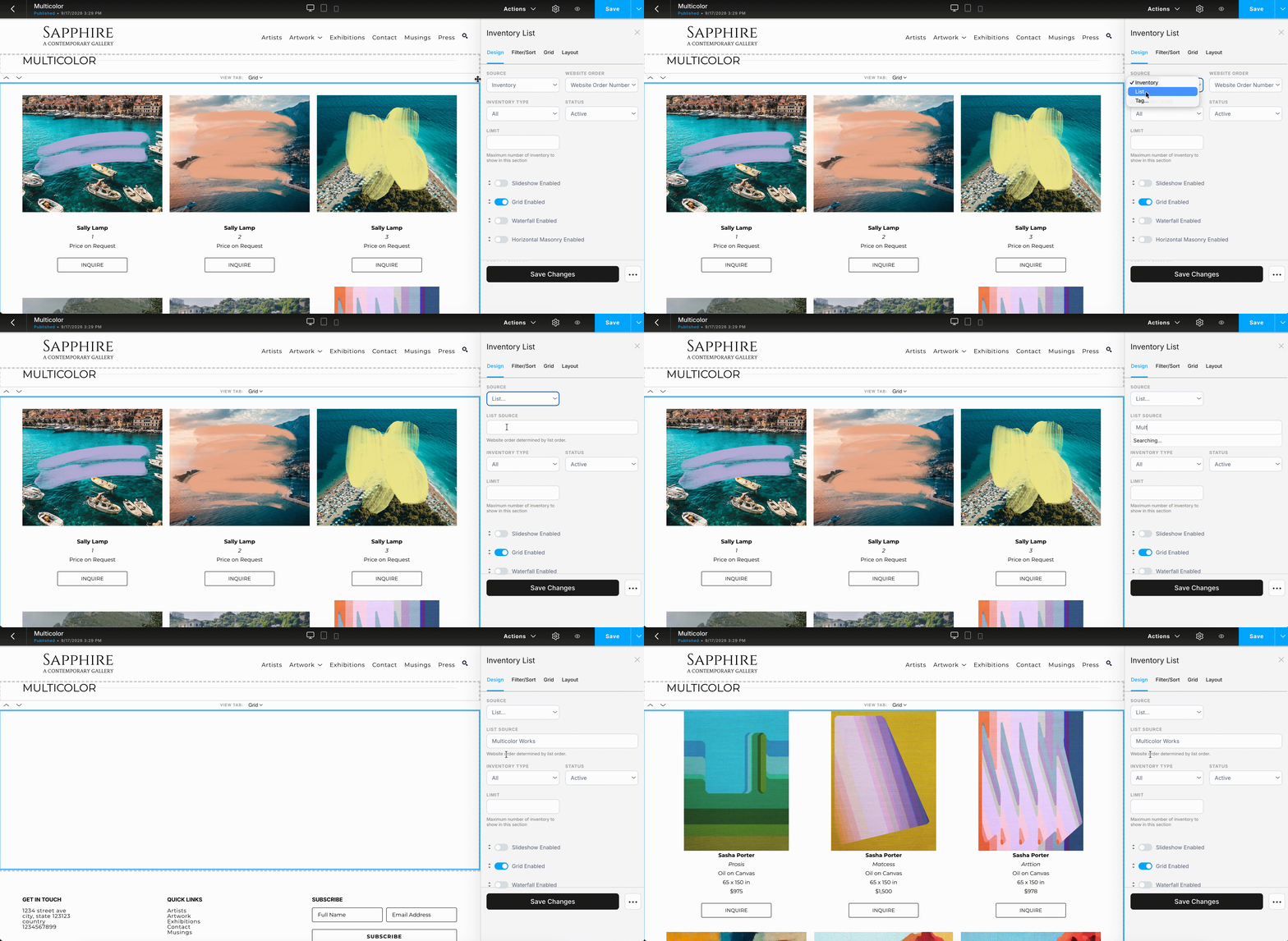
Select "List..." from the Source dropdown.
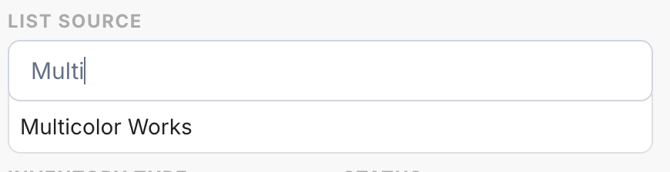
Enter and select a Quicklist from the List Source field.
The block updates automatically to show only inventory on that Quicklist.
Note: You can also display inventory by Tag. Create a tag for a group of inventory, and pick "Tag..." from the Source dropdown. Read more: Display Inventory by Tag.
Customize the Order of Inventory
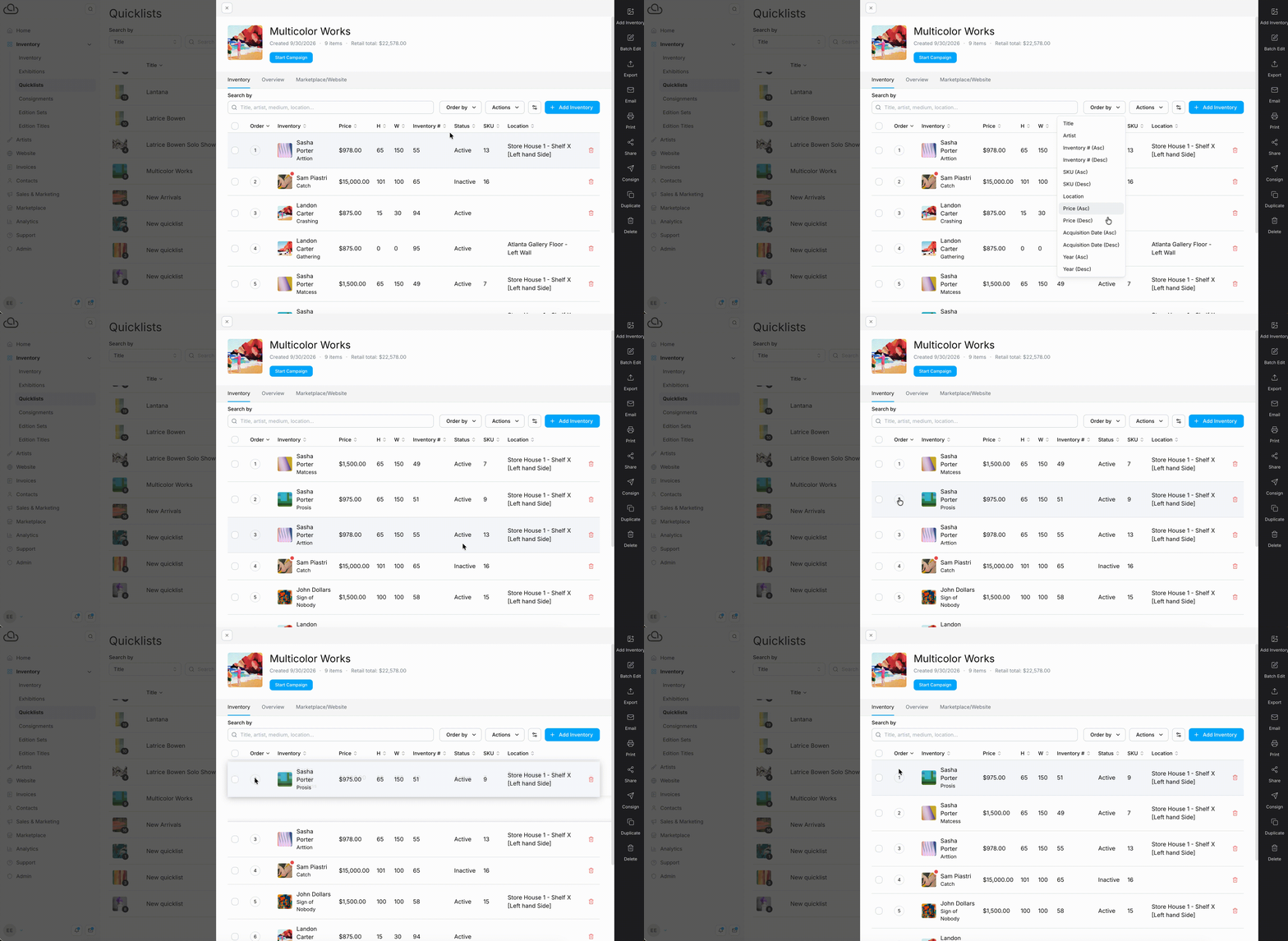
Adjust the inventory order in a Quicklist to customize an Inventory List block.
On the Inventory tab of a Quicklist, use the "Order By" dropdown to sort by a preset option, or drag and drop items into a custom order. Changes update on the website automatically.
Read more: Reorder Inventory in a Quicklist.